How to Keep a Private Dream Journal on iPhone
Dreams hold unfiltered thoughts, strange scenes, and feelings you rarely want stored on a remote server. Dreams Calendar keeps every dream diary entry, emotion tag, and sleep rating inside a local SwiftData database on your iPhone or iPad. There is no account to create and no cloud sync running in the background.
Check where your entries actually live
Many journaling apps ask for an email sign-up on the first screen so they can sync notes across servers or train cloud features. For a dream diary written half-awake at seven in the morning, remote storage often creates hesitation that makes you censor what you write.
Dreams Calendar stores everything locally on your device. Its own code makes zero network requests, and it never asks for access to your system calendar, contacts, microphone, photos, or Apple Health data. Only Google AdMob uses the network to serve occasional full-screen ads in the free app, and your written entries are never part of that.
- No sign-up, login, or cloud profile required to start writing.
- Entries stay in the app's on-device SwiftData store.
- Only notification permission is requested, solely for the optional daily reminder.
Set up an offline morning logging flow
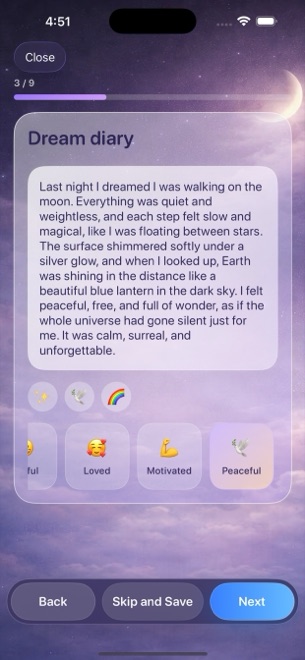
A private journal works best when opening it takes two seconds and asks clear questions instead of presenting an intimidating blank page. Each entry runs through a step-by-step wizard where you can answer what you remember and skip anything you want to leave blank.
Adding iOS 18 system biometric protection gives you a second privacy layer if family members occasionally borrow your iPhone or iPad. Because Dreams Calendar does not include an internal PIN screen, relying on Apple's native Face ID lock keeps authentication handled directly by the operating system.
- Install Dreams Calendar and choose your preferred morning reminder time in Settings, or turn the notification off completely.
- Long-press the Dreams Calendar icon on your iOS 18 Home Screen and tap Require Face ID so opening the app requires authentication.
- Tap Add each morning, choose Night Dream, set your sleep window, and type whatever fragments or scenes remain.
- Tap any matching positive or negative emotion chips underneath the diary and save the entry locally.
Understand the trade-offs of local-only storage
Keeping data strictly on one device means there is no hidden mirror in iCloud and no web dashboard to log into from another computer. If you use both an iPhone and an iPad, entries written on your phone stay on your phone rather than syncing across devices.
Local storage also puts you in charge of device backups. Deleting the app erases its database immediately, and version 1.1 does not include a file export button, so keeping regular encrypted iPhone backups on your Mac or through standard iOS device backup protects long-term logs if you replace your phone.
Write without self-editing
Once you know nobody else will see the entry, resist the urge to tidy a dream into a polished story. Jotting raw sensory details — an unfamiliar staircase, a missed train, an unexpected conversation — preserves far more context than trying to explain why the dream happened.
Pair short text notes with tappable emotion chips right away. Weeks later, looking back in Month or List view shows both the specific scene you wrote and the recurring emotional tone across your nights.
Edit or prune sensitive entries whenever you choose
Even in a private offline diary, your comfort level with an old entry can change months later. Every night dream, daydream, and day reflection in Dreams Calendar remains individually editable and deletable from Day, Multi-day, Month, or List view.
Removing a single entry updates your local statistics immediately, and removing the app from your iPhone or iPad wipes the entire SwiftData store cleanly with no leftover copy sitting on an external server.
Does Dreams Calendar sync my dream diary to iCloud?
No. Every entry stays in the app's local database on the device where you wrote it, with no iCloud sync and no developer server.
How can I lock Dreams Calendar with Face ID?
The app has no separate internal passcode, so use iOS 18's built-in lock: long-press the app icon on your Home Screen and choose Require Face ID.
Can I export my entries to PDF or CSV?
Not in version 1.1. You can read, edit, or delete entries individually across the six views inside the app.